Scheduling
Scheduling runs tasks at times you specify, much like the scheduling built into a project file — but across different devices and projects at once. Task schedulers can be created by anyone with the right permissions, from a desktop browser or a mobile device, without touching the project file.
Important
Devices store no scheduling information locally. Schedules are sent to a device as they are due, so a device must have an active connection to Cloud for its schedules to run.
Where the portal has On Device Schedules:
Where behaviour has to survive the site losing its connection, use On Device Schedules instead. Those are held on the controller and keep running while it is offline.
Cloud Scheduling can be used alongside Real Time triggers in a project file. There is no priority difference between the two, which is worth bearing in mind when programming the project.
Scheduling uses the site's local time, not the device's, so the site location must be set first — see Site settings.
The Events view at the top of the Scheduling tab shows what is scheduled to happen on a given site. Select an occurrence in the calendar to disable that single instance.
Important
The calendar view shows occurrences up to 400 days beyond a task scheduler's start date, with new ones added every 30 days. A scheduler that never ends keeps running even beyond the range the calendar displays.
Creating a task scheduler
Select Create above the task schedulers table.
Step 1 - what to run
Choose the tasks and actions the scheduler will run.
Existing tasks are added by selecting them in the Tasks view; they run as normal when the scheduler fires.
Add actions instead where no existing task covers what you need. Actions added here are put into a new task when the scheduler is created — rename that task using the hashed-line box above the actions.
Choose the device the action runs on from the drop-down.
Step 2 - when to run
Recurrence.
| Option | Behaviour |
|---|---|
| None | No schedule configured yet; add one later |
| Specific dates | Pick each date individually |
| Daily | Days between each recurrence |
| Weekly | Weeks between recurrences, a start date, and which weekdays to include |
| Monthly | Months between recurrences, a start date, and which days of the month to include |
| Yearly | Years between recurrences, a start date, and which dates of the year to include |
Choosing the days. Weekly, monthly and yearly each ask which days within the period to run on. A monthly or yearly recurrence can cover several days at once, so "the 10th to the 15th of February, every year" is one scheduler rather than six.
| Recurrence | How days are chosen |
|---|---|
| Weekly | Select the weekdays to include |
| Monthly | Repeat on offers Specific days — a grid of 1 to 31 — or The nth weekday, such as the second Tuesday |
| Yearly | Repeat on offers Specific dates — a grid per month — or The nth weekday of a month |
In a grid, select a day to add or remove it. Drag across several to select a run, or select one day and then shift-select another to fill everything between them. In the yearly grids, selecting a month's name selects that whole month, and selects it again to clear it.
Monthly also offers days counted back from the end of the month — Last day through 5th from last. These always exist whatever the month's length, which is what to reach for when you mean "the end of the month" rather than "the 31st".
Important
A day the period does not reach is skipped silently. A scheduler set to the 31st runs in the seven months that have one and does nothing in the other five, and 29 February runs only in leap years. The grids mark these days, but Cloud does not move them to the nearest real date — use the end-anchored days where the last day of every month is what you mean.
A monthly or yearly recurrence needs at least one day selected before you can continue. When a start date is chosen and no day has been selected yet, its day of the month is selected for you; edit the grid and it stays as you left it.
Daily, weekly, monthly and yearly recurrences each end in one of three ways:
| Ending | Behaviour |
|---|---|
| On a date & time | Nothing runs on or after that moment |
| After n occurrences | Counts occurrences, not days — three times a day is three occurrences. Up to 400 for monthly and yearly |
| Never ends | Runs indefinitely |
Times. Four ways to add them:
| Method | Behaviour |
|---|---|
| Simple | A specific time. Select confirm to add it — multiple can be added |
| Recurring | An interval plus start and end time. The preview shows every time about to be added |
| Astronomical | Sunrise or sunset with an optional offset. Maximum of five astronomical times per schedule |
| Time Mask | Specify hours, minutes and seconds; every matching time is previewed |
Remove a time with the x in selected times, or use Clear times.
Priority and date blocking. Priority affects only other task schedulers, never timeline priorities in the controller's programming, and applies only to exact time matches. Date blocking prevents any lower-priority occurrence from running at any time on a date on which this scheduler occurs. With date blocking off, priority only affects occurrences with exactly the same start time.
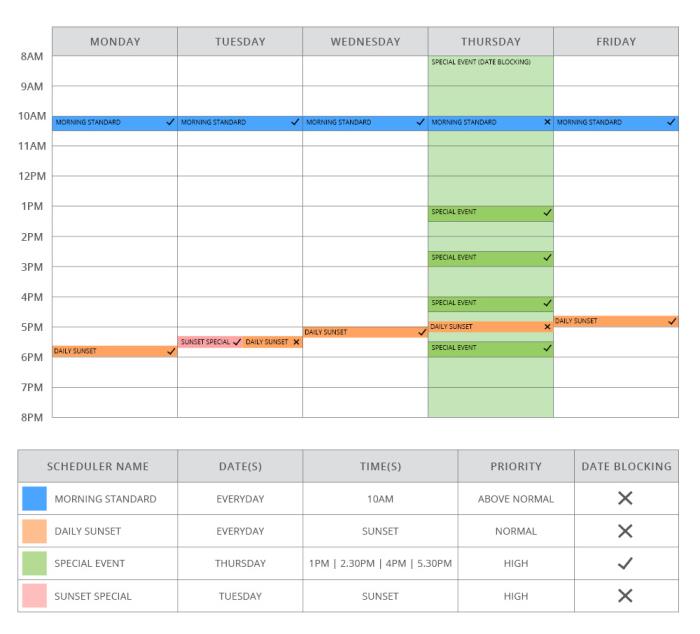
Step 3 - name it
Set the scheduler's name, description, occurrence colour and Offline Device protection. A preview of the actions, dates and times is shown here. Select Create Scheduler.
Cloud then creates the scheduler, a new task if you specified actions, and a default schedule attached to it. Use the events calendar to see active occurrences.
Offline Device protection
Before an event sends anything, Cloud checks every device its actions target. Offline Device protection decides how much of that event is abandoned when one of those devices is offline. Set it in step 3 when creating a scheduler, or later from Settings in the scheduler's edit view.
| Protection | Behaviour |
|---|---|
| Skip only offline device actions | The default. Only the actions aimed at the offline device are dropped; the rest of that task, and every other task, still runs |
| Skip task with offline device | The whole task holding that action is dropped, including its actions on devices that are online. The scheduler's other tasks still run |
| Skip schedule with offline device | Nothing runs. One offline device anywhere in the event cancels every task in it |
As a fallback, a device Cloud holds no status for counts as online, and its actions are sent.
Skipped work is never queued or retried — the event is finished with, and the next event is checked afresh. An event that skipped something is never reported as a plain success: it shows as a partial success where other work still ran, and as a failure where nothing did.
The setting belongs to the task scheduler rather than to the tasks, so the same task run by hand or from another scheduler is unaffected by it.
When an event does not run
An event that did nothing, or less than expected, records why. Select it in the Events view to read the reason held against each task.
| Reason | What it means |
|---|---|
| There is an offline device in one of the actions | A device the event targets was not connected. How much was skipped depends on Offline Device protection |
| Failed due to the Site being in a limited state | The site is in Construction or Standby rather than Active, and runs no tasks — see How Cloud works |
| Disabled Multi-site device actions | The multi-site the site belongs to has device actions turned off for it |
| The task has an action with an invalid status | An action is no longer valid, usually because the project file changed underneath it |
| Task scheduler is disabled | The scheduler's toggle is off, so none of its events run |
| Disabled occurrence | That single event was disabled from the calendar |
| Overriden by | A higher-priority scheduler took the slot — see priority and date blocking above |
| Task was not found | The task was deleted after the scheduler was set up |
| Internal error occurred | Cloud could not reach the device, or the service carrying the action failed. Contact us with the event and time |
The first four are checked before anything is sent, and Offline Device protection decides how much of the event is abandoned in each of those four cases, not only the offline one.
Editing task schedulers
Select the edit button for a task scheduler in the Options section. From there you can:
- Edit the name and settings of the task scheduler immediately
- Add, edit or delete its schedules
- Add, edit or delete its tasks
Deleting task schedulers
Select the delete button for a task scheduler in the Options section, then confirm. This cannot be undone.
Task schedulers can be disabled with the inline toggle switch instead of being deleted.